



At Eagle Buick GMC, we’re proud to serve drivers across Spring Hill, Hudson, Brooksville, and Dade City with everything from new and used vehicle sales to trusted service, genuine GMC parts, and expert advice. Whether you drive a Sierra 1500, Acadia, or Yukon, our team is here to keep you on the road with confidence. If you need help, we’re only a phone call away—reach out today to schedule service or speak with one of our GMC specialists.
Changing the clock in your GMC is simple once you know the right steps. From resetting the dash clock in older models to updating the infotainment system in newer 2025 vehicles, the process only takes a few minutes. This step-by-step GMC time guide walks through everything you need, including how to adjust for daylight saving time, reset after a battery disconnect, and keep your infotainment system accurate.
How Do You Set the Clock in a GMC with an Infotainment System?
Many 2025 GMC models use a large screen for key controls. The Acadia, Sierra 1500, and Yukon all share this setup. The good news is the process is fast and simple.
Here’s how to change time in GMC models with infotainment systems:
- Start your vehicle and turn on the screen.
- Open the “Home” screen.
- Tap “Settings.”
- Choose “Time & Date.”
- Adjust hours and minutes with the arrows.
- Confirm the change.
- Enable “Auto Time Zone” for hands-free updates.
With these steps, you’ll have the right time in less than a minute. It’s a simple task, but one that helps keep trips smooth.
How Can You Reset the GMC Dash Clock on Older Models?
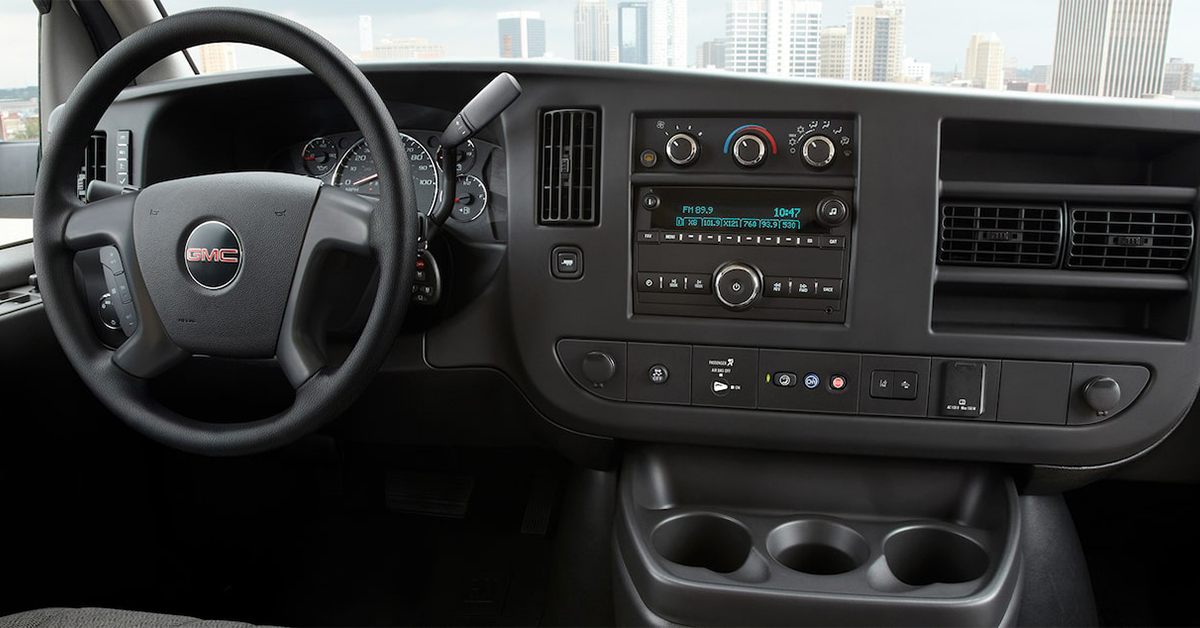
Not all drivers use the latest screen systems. Some older GMCs rely on a simple radio display. Even if your Yukon has an older setup, you can reset the clock in just a few steps.
Here’s how to adjust when your model does not use the GMC infotainment clock:
- Turn on the ignition.
- Press the “Menu” or “Clock” button until the time blinks.
- Use the “Seek” or “Tune” buttons to change the hours.
- Repeat to set the minutes.
- Press the “Menu” or “Clock” button again to save.
This process takes only a few moments and does not need tools or a trip to service.
Why Does Your GMC Clock Need to Be Updated?
A clock that shows the wrong time can cause more stress than most drivers expect. You rely on it for work, school, and travel. Even a few minutes off can throw off your day.
The need to adjust your clock can come from several causes:
- Daylight saving time changes twice each year.
- A weak or new battery may reset the system.
- Travel across time zones can shift the display.
- System updates may change the stored time.
Drivers in models like the Sierra 1500 should know how to use a set GMC clock guide. This skill saves time and helps avoid late starts. It also ensures your dash matches your phone, watch, and GPS.
What Should You Do If Your GMC Clock Resets After a Battery Disconnect?
A battery swap or power drop may cause your clock to reset. This is a common issue, even in newer trucks like the Sierra 1500.
When you face a GMC dash clock reset after battery work:
- Start your vehicle and wait a few minutes.
- Check if the time adjusts on its own.
- If not, follow the same steps used for infotainment or dash reset.
- For some models, full sync may take up to 8 hours.
If the issue returns often, the battery or system may need service. A quick visit to Eagle Buick GMC can confirm the cause.
Does Your GMC Clock Automatically Adjust for Daylight Saving Time?
Many newer GMC models now take care of this step for you. Vehicles like the Acadia and Sierra 1500 can be set to adjust on their own. This feature saves time and removes the need for manual changes each spring and fall.
Follow this step-by-step GMC time guide to enable auto updates:
- Open the infotainment “Settings.”
- Select “Time & Date.”
- Turn on the “Auto Time” or “Daylight Saving” option.
- Confirm the setting to lock in the change.
Once active, your clock shifts with the season so you stay on track. Some models also sync with GPS, which means your system can detect the time zone you are in and make changes right away. This helps when you drive long trips or cross state lines.
If your vehicle has this feature, you can:
- Keep the time accurate without extra steps.
- Avoid confusion when the time changes twice a year.
- Rely on GPS to keep your settings correct, even after a battery reset.
Older GMC models may not offer this option, so you may still need to make changes by hand through the same menu.
Where Can You Find Model-Specific GMC Clock Instructions?
Each GMC has small changes in how the clock is set. A Yukon may use a menu that looks different than a Sierra or Acadia. Knowing where to look saves time and avoids guesswork.
You can find a reliable set GMC clock guide in a few places:
- Owner’s manual: Each model has clear steps for the dash and screen.
- Infotainment help menu: Many screens have a built-in guide for quick use.
- GMC website: Online support pages list time and date details for most trims.
- Dealership support: A quick visit or call to Eagle Buick GMC can walk you through the process.
When you follow the right guide for your model, the task is fast and stress-free.
Why Is It Helpful to Keep Your GMC Infotainment System Updated?
A system update may not sound urgent, but it can make a big difference. Updates often improve how your screen works and how the clock syncs.
If you own a Sierra 1500 or other newer model, an update can even make it easier to change time GMC 2025 vehicles. That means fewer resets and smoother trips.
Here’s why keeping your system current helps:
- Better accuracy: Time and date stay in sync with less need for manual changes.
- More features: Some updates add or improve auto time zone options.
- Stronger safety: Updates can improve alerts, maps, and screen speed.
- Fewer errors: Older software may cause lags or wrong time display.
Updating the infotainment system is quick, and it ensures your clock runs right with the rest of your tech.
How do I change the clock in my GMC step-by-step?
Turn on the vehicle, go to the infotainment Settings menu, select Time & Date, adjust hours and minutes, and confirm your choice.
Which infotainment menu controls date and time?
The Time & Date option under the main Settings menu controls your clock settings.
Can I choose between 12-hour and 24-hour formats?
Yes, most GMC models allow you to switch between 12-hour and 24-hour displays in the clock menu.
Does GPS sync automatically update the time?
Yes, many newer GMC models have an Automatic Time Zone or GPS sync option that updates the time for you.
How do I reset after battery disconnection?
Restart the vehicle, wait several minutes, then check if the time syncs automatically. If not, manually reset the clock using the infotainment or dash controls.
Keep Your GMC Ready for the Road with Eagle Buick GMC
If you need more help with your clock or any other service need, the team at Eagle Buick GMC is here to assist. We proudly serve drivers in Spring Hill, Hudson, Brooksville, and Dade City, with expert care for models like the Sierra 1500, Acadia, and Yukon. Call or visit us today to get the support you need.
Beyond clock settings, many drivers ask about other common issues. You can learn more about GMC stalls, check out tips for Buick stalls, or even explore the best Buick deals to know when to shop. These quick reads give you simple answers and help you stay ahead on service and savings.
Your next step is easy. Visit Eagle Buick GMC to explore our wide selection of vehicles and keep your drive on track.
Get Directions to Eagle Buick GMC
Disclaimer: All information is provided for general informational and entertainment purposes only. While we strive for accuracy, we cannot guarantee that all content is complete, current, or error-free. Any reliance you place on such information is strictly at your own risk. This article may include opinions and is not endorsed by, or officially affiliated with, any vehicle manufacturer or brand. Always consult official sources – such as the vehicle’s owner’s manual, authorized dealerships, or certified professionals – for the most up-to-date and personalized information.
Connect with us


- July 2026
- June 2026
- April 2026
- January 2026
- November 2025
- October 2025
- September 2025
- August 2025
- July 2025
- June 2025
- May 2025
- April 2025
- March 2025
- February 2025
- January 2025
- December 2024
- November 2024
- October 2024
- September 2024
- August 2024
- July 2024
- June 2024
- May 2024
- April 2024
- March 2024
- February 2024
- January 2024
- December 2023
- November 2023
- October 2023
- September 2023
- August 2023
- April 2023
- February 2023
- December 2022
- November 2022
- October 2022
- September 2022
- August 2022
- July 2022
- June 2022
- May 2022
- April 2022
- March 2022
- February 2022
- January 2022
- December 2021
- September 2021
- August 2021
- June 2021
- May 2021
- April 2021
- March 2021