



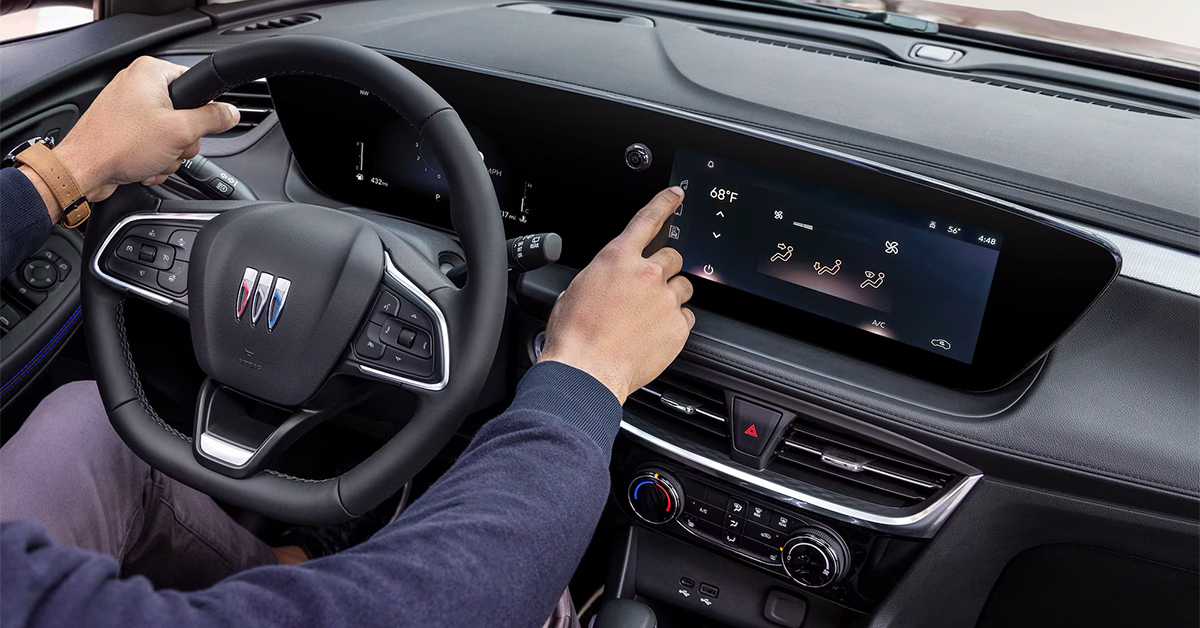
At Eagle Buick GMC, we are proud to serve drivers throughout Spring Hill, Hudson, Brooksville, and Dade City with a full range of automotive services. From helping you find the right Buick SUV like the Enclave, Envision, or Envista, to keeping your vehicle running smoothly with expert service and genuine parts, our team is here to support every step of your journey. Whether you’re looking for a new ride, scheduling maintenance, or need help with something as simple as adjusting your dashboard settings, we encourage you to visit Eagle Buick GMC or contact us today.
Changing the clock in your Buick doesn’t have to be complicated. With a clear step-by-step process, you can quickly reset the time through your infotainment system, choose between automatic or manual updates, and ensure your dash always displays the correct time. This guide walks through everything you need to know, from quick adjustments in your 2025 Buick to troubleshooting tips if your infotainment clock won’t update, so you can stay on schedule wherever the road takes you.
How Do You Change the Time Settings in a Newer Buick?
Changing the time in a newer model does not take long. Many drivers want to know how to change time Buick 2025 settings in a quick way.
For models like the Envision, the system is built for ease. You can adjust the clock with just a few steps:
- Turn on the ignition to power the screen.
- Tap “Settings” on the display.
- Open “Time & Date.”
- Adjust the hour, minute, and AM or PM.
- Press “Save” to lock your change.
Once done, the clock shows the right time on your dash and screen.
Step-by-Step Buick Time Adjustment Guide
The Buick infotainment clock makes it easy to set the time by hand. The layout is clean and built to guide you. Models like the Envista share this same process.
Here’s how to reset the time:
- Start the vehicle.
- Press the “Settings” button.
- Choose “Time & Date.”
- Turn off “Auto Date & Time” if it is on.
- Adjust the hour, minute, and AM/PM.
- Pick 12-hour or 24-hour style.
- Save and return to the home screen.
This step-by-step path works for most new Buick SUVs. Once done, your dash clock and screen will show the right time.:
How Does the Buick Infotainment Clock Work with Automatic Updates?
Your clock can adjust on its own. Many drivers like this option because it saves time and cuts stress.
In models like the Enclave, the system links to GPS or a network. When “Auto Date & Time” is on, the dash shifts as needed. This means your Buick dash time reset may never need a manual step.
Auto updates help in key ways:
- Adjust for Daylight Saving Time.
- Sync with time zones as you travel.
- Reduce the need for driver input.
If the time does not update, you can still use the menu to make changes by hand.
Why Adjusting the Clock in Your Buick Matters
Time is part of every drive. A clock that shows the right hour keeps you on track for work, school, or travel. Even small delays can add stress to your day.
Modern vehicles like the Enclave use advanced systems that make updates fast. A set Buick clock guide ensures you know the right steps when you need them.
Why it matters:
- Keeps your travel time on schedule.
- Helps navigation tools work with more accuracy.
- Reduces stress when you need to plan a route.
A clear clock may feel small, but it helps every ride run smooth.
Do All Buick Models Use the Same Clock Reset Steps?
Most newer SUVs follow one clear path to reset the clock. Still, some menu screens may look a bit different.
For example, the Envision has a clean layout with “Time & Date” right in the main menu. The Envista uses a very close setup.
A step-by-step Buick time process works for both, but small design changes may change the flow.
To keep it simple, check these points for each model:
- Where “Settings” is on the display.
- If “Auto Date & Time” is on by default.
- How the save option shows on the screen.
This way you know your Enclave, Envision, or Envista will always keep the right time.
Here are the next two sections written clearly, with short sentences, easy readability, and natural use of your keywords and vehicles:
What If Your Buick Clock Will Not Update? Troubleshooting Tips
Sometimes the clock may not change as expected. This can happen even in new models like the Envista.
Use this set Buick clock guide to fix most common issues:
- Restart the vehicle – Turn off the ignition, wait a few seconds, and restart.
- Check the screen – Ensure the infotainment display responds to touch and buttons.
- Verify settings – Confirm “Auto Date & Time” is on or off, depending on your choice.
- Reset manually – Use the menu to adjust hour, minute, and AM/PM if needed.
- Consult the manual – Your owner’s guide may have model-specific steps.
Following these tips can restore proper time display quickly. If problems continue, professional support is available.
How Can Eagle Buick GMC Keep Your Vehicle Running Smoothly?
Eagle Buick GMC supports drivers across Spring Hill, Hudson, Brooksville, and Dade City. Our team can assist with setting clocks in models like the Enclave.
We can help if you need to change time Buick 2025 or troubleshoot the infotainment system.
Services include:
| Service | Description |
| Clock setup | Adjust hours, minutes, and AM/PM correctly |
| Infotainment check | Ensure touch screen and buttons respond |
| System updates | Install software updates for accurate time |
| Professional support | Guide you through steps or reset the system |
Our technicians ensure your Buick runs smoothly. Drivers can call or schedule service for hands-on help.
What steps change the clock on my Buick’s infotainment?
Start your vehicle, access the infotainment system, go to Settings > Time & Date, turn off automatic updates if needed, then adjust the hour, minute, and AM/PM or 24-hour format. Save your changes.
Where is the time-setting option located?
The time-setting option is found under Settings > Time & Date in the infotainment menu. Some models also allow direct access by tapping the clock icon on the home screen.
Can I toggle between time formats?
Yes. You can switch between 12-hour and 24-hour formats in the Time & Date settings.
Will the clock update via cell-network time?
Yes, if “Automatic Date & Time” is enabled, the system can use GPS or network information to update the clock.
How do I restore factory defaults if needed?
You can reset your clock by using the infotainment menu to restore system settings or select the factory reset option. Check your owner’s manual for model-specific instructions.
Stay on Time and Road Ready with Eagle Buick GMC
If you need help with your clock settings or any part of your Buick, our team is here to assist. Eagle Buick GMC is proud to serve drivers in Spring Hill, Hudson, Brooksville, and Dade City. From quick service tasks to full system checks, we make sure your Enclave, Envision, or Envista is ready for the road.
We also invite you to explore more helpful resources on our site. Learn the best time to shop for a new Buick, or read about common issues like Buick stalls and GMC stalls that may affect daily drives.
Our team is here to guide you with clear steps, expert service, and a wide range of vehicles. Contact us today or browse our site to keep your Buick running right.
Get Directions to Eagle Buick GMC
Disclaimer: All information is provided for general informational and entertainment purposes only. While we strive for accuracy, we cannot guarantee that all content is complete, current, or error-free. Any reliance you place on such information is strictly at your own risk. This article may include opinions and is not endorsed by, or officially affiliated with, any vehicle manufacturer or brand. Always consult official sources – such as the vehicle’s owner’s manual, authorized dealerships, or certified professionals – for the most up-to-date and personalized information.
Connect with us


- July 2026
- June 2026
- April 2026
- January 2026
- November 2025
- October 2025
- September 2025
- August 2025
- July 2025
- June 2025
- May 2025
- April 2025
- March 2025
- February 2025
- January 2025
- December 2024
- November 2024
- October 2024
- September 2024
- August 2024
- July 2024
- June 2024
- May 2024
- April 2024
- March 2024
- February 2024
- January 2024
- December 2023
- November 2023
- October 2023
- September 2023
- August 2023
- April 2023
- February 2023
- December 2022
- November 2022
- October 2022
- September 2022
- August 2022
- July 2022
- June 2022
- May 2022
- April 2022
- March 2022
- February 2022
- January 2022
- December 2021
- September 2021
- August 2021
- June 2021
- May 2021
- April 2021
- March 2021